For Publishers

CMS Guide

Step-by-step on using the CMS in the DML Publisher Hub

1
Log in
Log into DML Publisher Hub using your publisher credentials. 
Visit Publisher Hub
2
Create a post
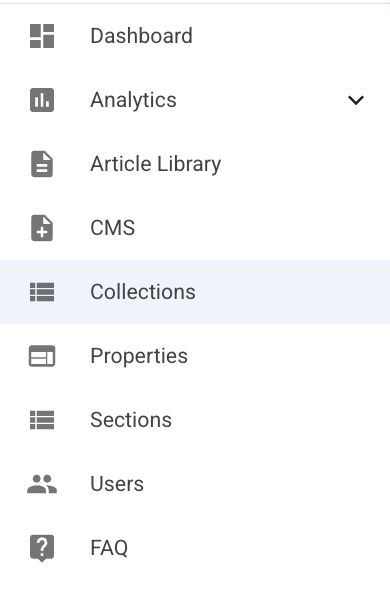
Navigate to the CMS tab on the left sidebar and click to expand. 

Select "Create new post".
3
Add content to post
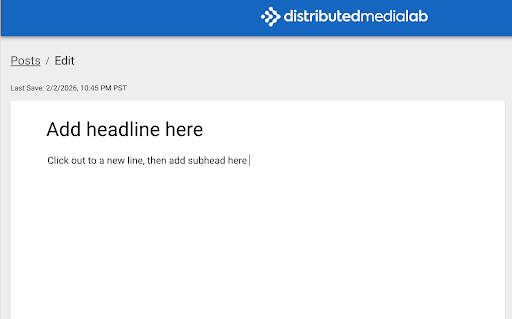
Type or copy/paste text into the CMS.
a.
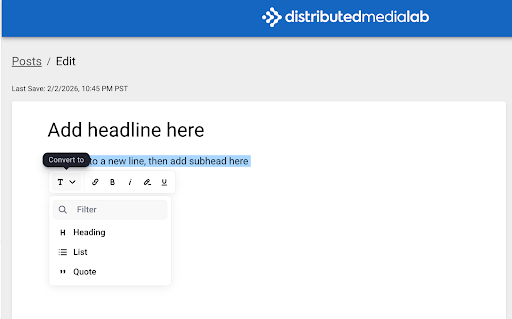
Change Text Type
Highlight text and expand the dropdown to select text type.
b.
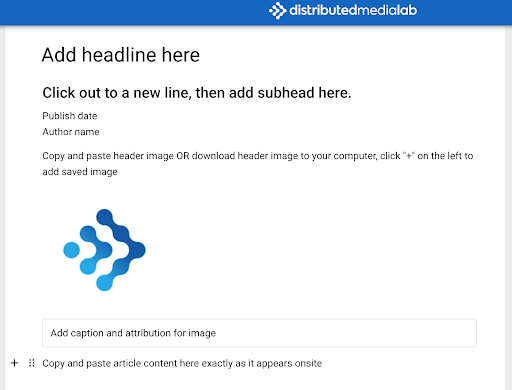
Add Article Content
Add article content as it appears on original article.

Type or copy/paste text. Drag and drop images or click the “+” sign to add a content block.

To add Youtube videos or X posts, just paste the link into the article. Other social platforms are not supported.
c.
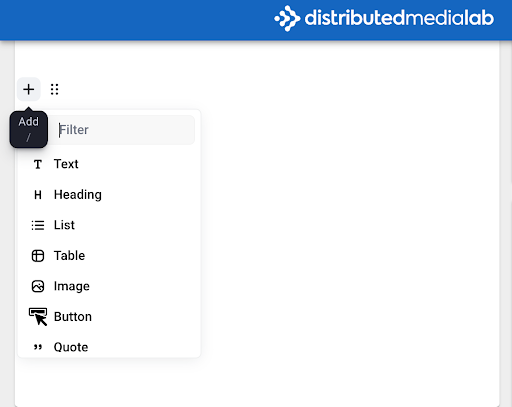
Add Content Blocks
Click the “+” sign to add a content block.
d.
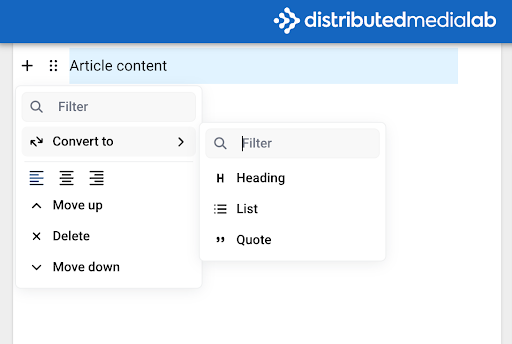
Make Formatting Changes
Click the 6 dots to make formatting changes.
4
Publish
When the article is updated, check for consistency in formatting, links, and text style like bold or italics.

Double check and remove any ads, newsletter signup, or popup content from the article if necesarry. 

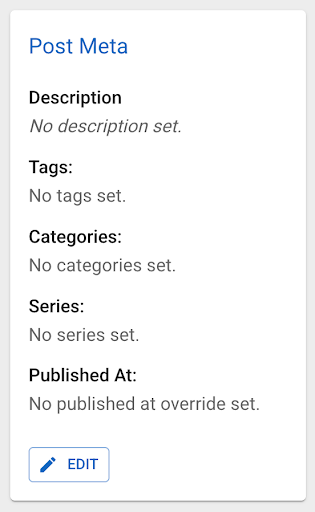
Once the post content is filled out, navigate to the Post Meta box on the right side of the page.

Click EDIT, then add a description of the article in the popup window. 
a.
Select Series for Ad Targetting
If your collection is linked to an advertising sponsor, click “Series” to select your ad series from the dropdown. Click UPDATE to save your changes. 

If your collection does not have an advertising sponsor, there is no need to select a series.
b.
Select Template
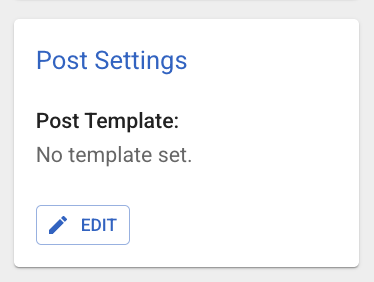
Navigate to the Post Settings box on the middle-right side of the page.

Click the EDIT button, then select the Post Template. Press UPDATE when you’re done.

If you need a new Post Template, reach out to DML Support.
c.
Publish
Double check that everything looks alright, then click PUBLISH in the top right box.

Wait about 30 seconds for the post to render, then click the VIEW ARTICLE button to open the Post link. Scan the article and make sure it looks right. Then, copy the link – you’ll need it for the next step.
5
Add post to collection
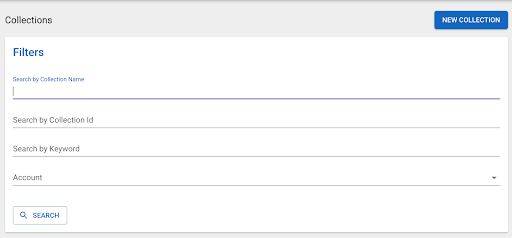
Navigate to the Collections tab on the left side bar and click to open the Collections page.  
a.
Select Collection
Search for your collection by name or keyword. Verify the Account ID to make sure you’ve selected the right one.
b.
Add Article
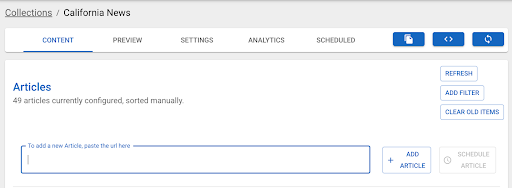
Once you open the collection, you’ll see a box at the top to add a new URL. This is where you drop the AMP link you copied from the new post.

Click the ADD ARTICLE button to add the post to the collection immediately. You can also schedule the article to be added to the collection at any time in the future.

To review scheduled articles, click the SCHEDULED tab on the top bar. 

You can preview the live collection from the PREVIEW tab.

Questions?

Reach out to learn more about using the DML CMS.
support@distributedmedialab.com